Product

MRP for
small business.

Dream MRP is built for small businesses who want real MRP discipline without an enterprise price tag. Here’s what’s inside.

Menu 01 / Home

Run the plan
from one button.

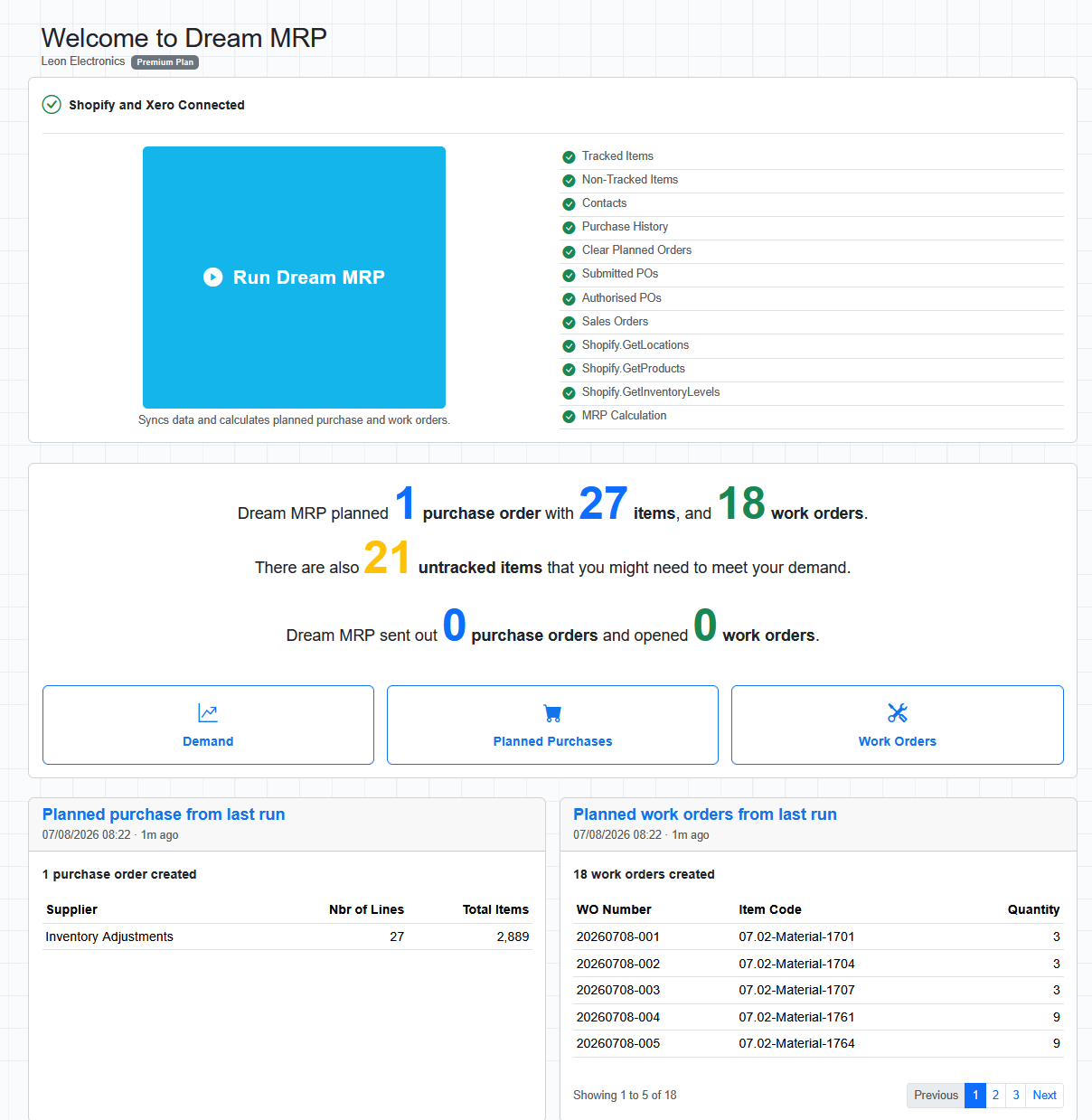
The home screen is the control panel. Run Dream MRP executes the whole chain in sequence — pull items, contacts, purchase history, submitted and authorised POs, sales orders and Shopify inventory, clear the old planned orders, then recalculate. Every step reports pass or fail as it runs.

When it finishes you get the headline numbers: purchase orders planned, lines and items on them, work orders planned, untracked items that demand exists for, and how many orders were actually sent out versus just planned.

Benefit — one click replaces a morning of spreadsheet reconciliation, and the connection status tells you the plan is built on today’s data, not last week’s.

run
Full sync and calculate

One action syncs Xero, QuickBooks or Shopify data and runs the MRP calculation. Each stage is ticked off on screen so a failed step is obvious immediately.

summary
Result in plain numbers

Planned purchase orders, planned work orders, untracked items you may still need, and how many documents were actually issued — all stated on one line each.

last run
Last run detail

Tables list the purchase orders created by supplier and every work order with its number, item code and quantity, timestamped so you know how fresh the plan is.

jump
Straight to the work

Shortcut tiles take you from the result into Demand, Planned Purchases or Work Orders without hunting through menus.
Dream MRP Home screen
Home / run summary and last-run detail
Menu 02 / Demand

Every shortage,
with its arithmetic.

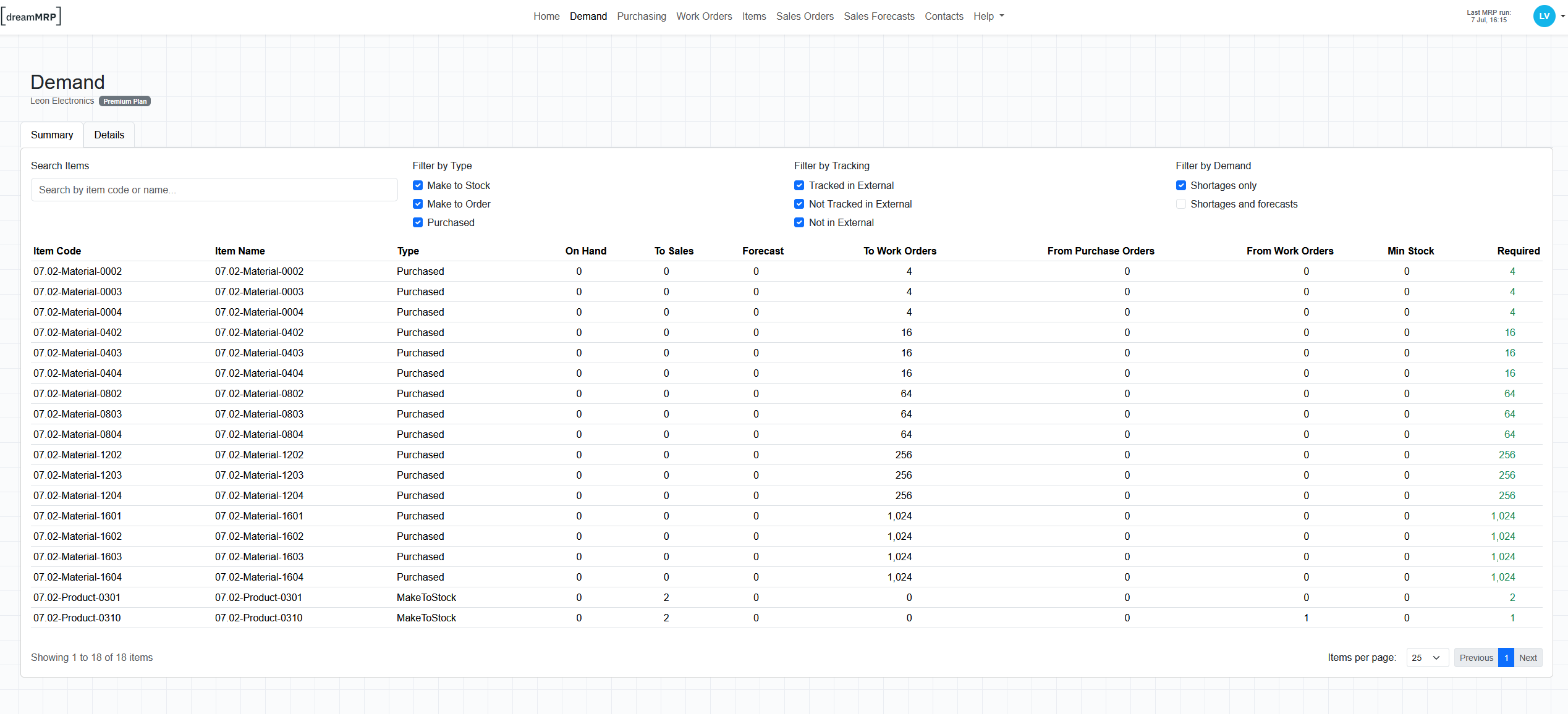
Demand is the calculation laid bare. For each item you see On Hand, demand To Sales, Forecast, demand To Work Orders, incoming From Purchase Orders, incoming From Work Orders, Min Stock, and the resulting Required quantity — the number Dream MRP is actually planning against.

Filter by item type (Make to Stock, Make to Order, Purchased), by tracking status, and by whether you want shortages only or shortages plus forecast demand. A Details tab breaks a single item down to the individual orders driving it.

Benefit — no black box. You can defend every planned order to a supplier, an auditor or a sceptical production manager.

netting
Supply netted off demand

Open purchase orders and open work orders are counted as incoming supply, so you never re-order something already on its way.

summary / details
Two levels of view

Summary gives one row per item. Details expands to the source records so you can trace a requirement back to the sales order or parent work order.

filters
Cut to what matters

Shortages only for today’s buying decisions; shortages and forecasts when you are planning the quarter. Search by item code or name at any time.

min stock
Safety stock respected

Minimum stock levels are treated as demand, so critical components are replenished before an order forces the issue.

Dream MRP Demand screen
Demand / summary view with shortage filters
Menu 03 / Purchasing

From planned
to sent.

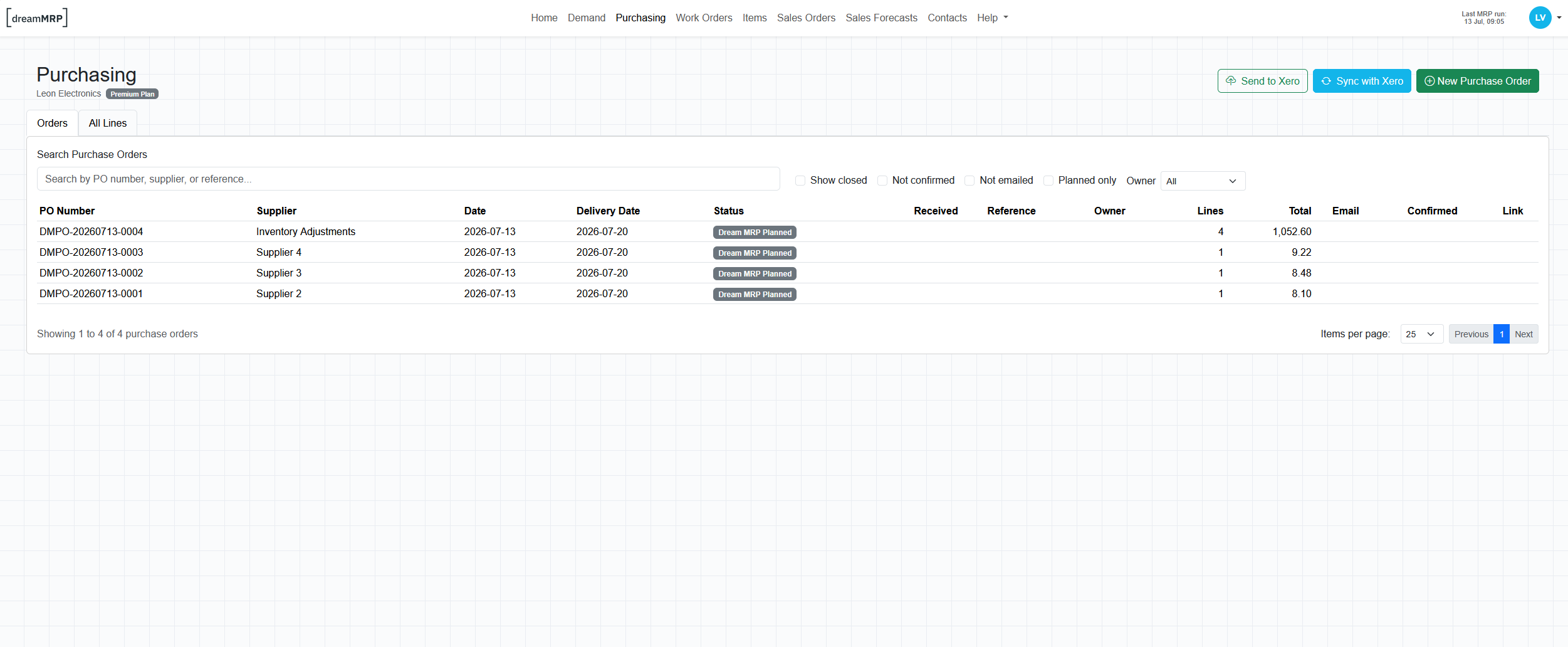
Purchasing holds every purchase order Dream MRP planned and every one you raised by hand. Each carries a supplier, order and delivery date, expected arrival, reference, owner, line count and total, plus a status showing whether it is still planned, confirmed, emailed or received.

Open one and edit it properly: change supplier, contact and email, adjust quantities and unit prices, set the nominal account and tax rate per line, add delivery instructions, or delete lines you don’t want. Then push it to Xero or QuickBooks with Send to Xero, and pull status back with Sync.

Benefit — purchasing stops being retyping. The plan becomes a real order in your accounting system with the right codes on it.

review
Nothing sent unseen

Planned orders sit in a review state until you act. Filter by planned only, not confirmed, not emailed or owner to find exactly what is waiting on you.

lines
Full line control

Quantity, unit price, description, account code and tax treatment are all editable per line, with an All Lines tab for working across every open order at once.

suppliers
Grouped by supplier

Requirements are consolidated into one order per supplier rather than a scatter of single-line POs, with a new supplier creatable inline.

two-way
Status comes back

Once sent, receipts and authorisations sync back from your accounting system and feed straight into the next MRP run as incoming supply.

Dream MRP Purchasing screen
Purchasing / planned orders and line editing
Menu 04 / Work Orders

A schedule
the floor can read.

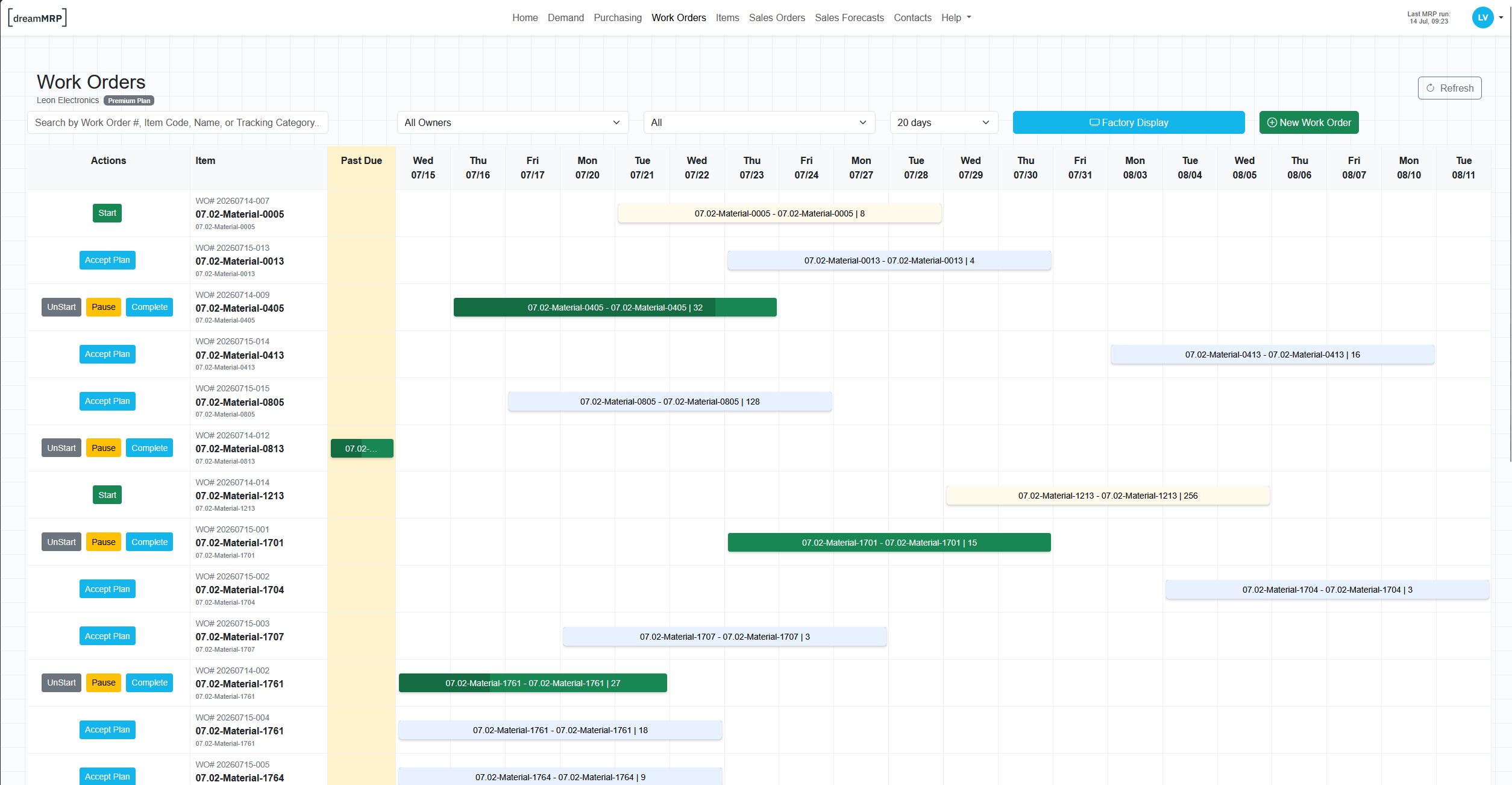
Work orders are shown as a horizontal timeline: one row per order, bars positioned across the working days ahead, with a dedicated Past Due column so late jobs cannot hide. Bar length reflects the manufacturing hours on the item.

Drive each order from the same row — Accept Plan to commit a planned order, Start, Pause, UnStart and Complete as the job moves. Completion posts the stock movements: components consumed, finished item added. Filter by owner, status or horizon, and put the whole board on a screen in the workshop with Factory Display.

Benefit — production status is a shared fact rather than a conversation, and multi-level builds are sequenced so sub-assemblies finish before the parent starts.

gantt
Timeline view

Colour-coded bars separate planned, accepted, started and completed orders across a horizon you choose, from a few days to several weeks.

past due
Late work is unmissable

Anything that should already have finished is pinned in the Past Due column at the left edge of the board.

bom snapshot
Frozen bill of materials

Each work order takes a snapshot of the BOM when it is created, with planned and used quantities per component, so later recipe changes never rewrite history.

factory display
Shop-floor mode

A stripped-back full-screen board for a workshop monitor, so operators see today’s queue without touching the admin screens.

Dream MRP Work Orders screen
Work Orders / scheduling board with past due
Menu 05 / Items

The catalogue
and its recipes.

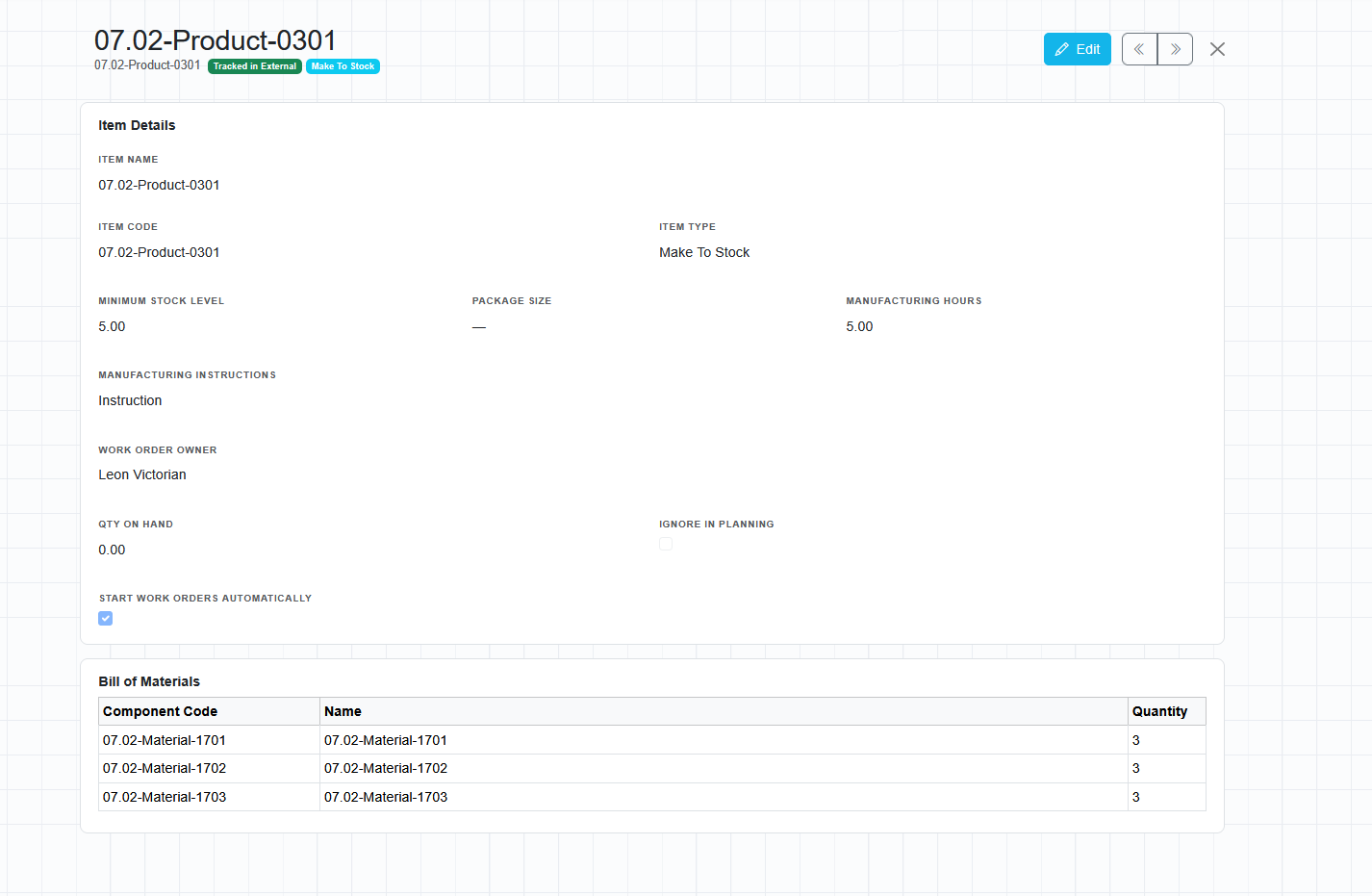
Items is where the master data lives, split into Purchased, Make To Stock and Make To Order, with tabs for all product BOM records and the BOM snapshots held by current work orders. Sync pulls the catalogue from Xero or QuickBooks; anything that doesn’t exist there can be added directly.

Per item you set minimum stock level, package size, manufacturing hours, manufacturing instructions, work order owner, whether to ignore the item in planning, and whether work orders should start automatically. Underneath sits the bill of materials — component code, name and quantity — which Dream MRP explodes through every level.

Benefit — set the rules once per item and the planner applies them every run, consistently, at whatever depth your product tree goes.

types
Buy, stock or build to order

Classifying an item as Purchased, Make To Stock or Make To Order decides whether a shortage becomes a purchase order or a work order.

bom
Multi-level BOMs

Components can be manufactured items with their own BOMs. The full tree is resolved automatically and circular references are rejected before they can corrupt a run.

rules
Per-item planning rules

Minimum stock, package size, manufacturing hours, default owner, auto-start and ignore-in-planning are all held on the item and honoured by every calculation.

bulk
Bulk edit and import

Select an action and apply it across a filtered set, or import items and BOMs from CSV instead of keying hundreds of lines by hand.

Dream MRP Items screen
Items / catalogue, item detail and bill of materials
Menu 06 / Sales Orders

Demand in,
automatically.

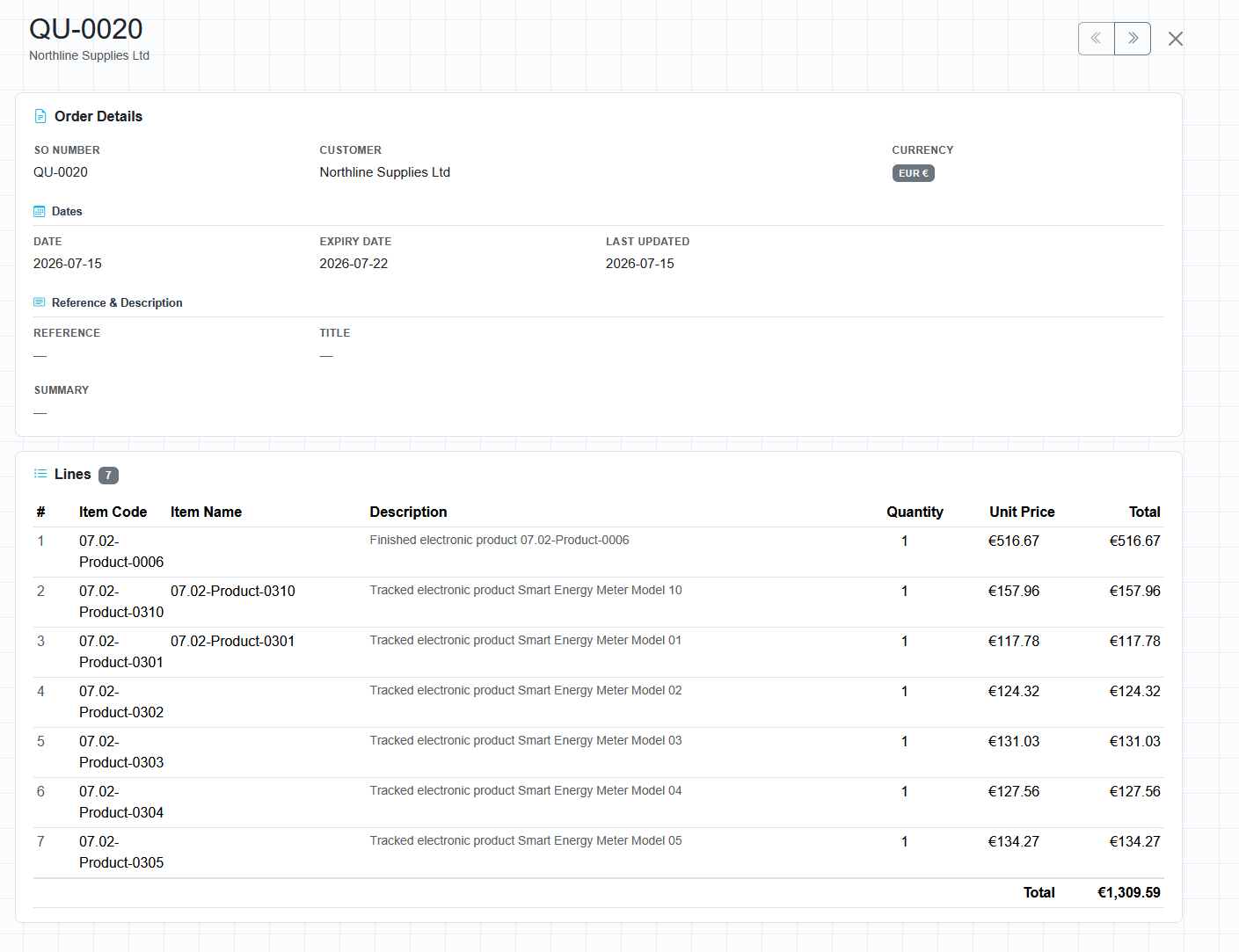
Sales orders and quotes sync in from Xero, QuickBooks and Shopify. Each shows customer, order and expiry dates, reference, currency, and every line with item code, description, quantity, unit price and total.

These records are the primary demand signal. When a new order lands, its lines are exploded through the BOM and netted against stock and incoming supply on the next run — which on Premium and Enterprise plans can be triggered by the order itself.

Benefit — no re-keying and no lag between a customer confirming an order and your buying and production plan reflecting it.

sync
Pulled from your systems

Orders and quotes arrive from the accounting system and Shopify store you already use. Dream MRP is not another place to type an order.

lines
Line-level demand

Each line becomes a requirement against a specific item code, in the order’s own currency, with dates that drive when the work has to start.

quotes
Quotes as well as orders

Quotes are visible alongside confirmed orders so you can see what is coming before deciding to commit stock to it.

trigger
Order-driven runs

On Premium and Enterprise plans an incoming order can trigger an MRP run on its own, so shortages surface the same day.

Dream MRP Sales Orders screen
Sales Orders / order detail and lines
Menu 07 / Sales Forecasts

Plan for orders
you haven’t won yet.

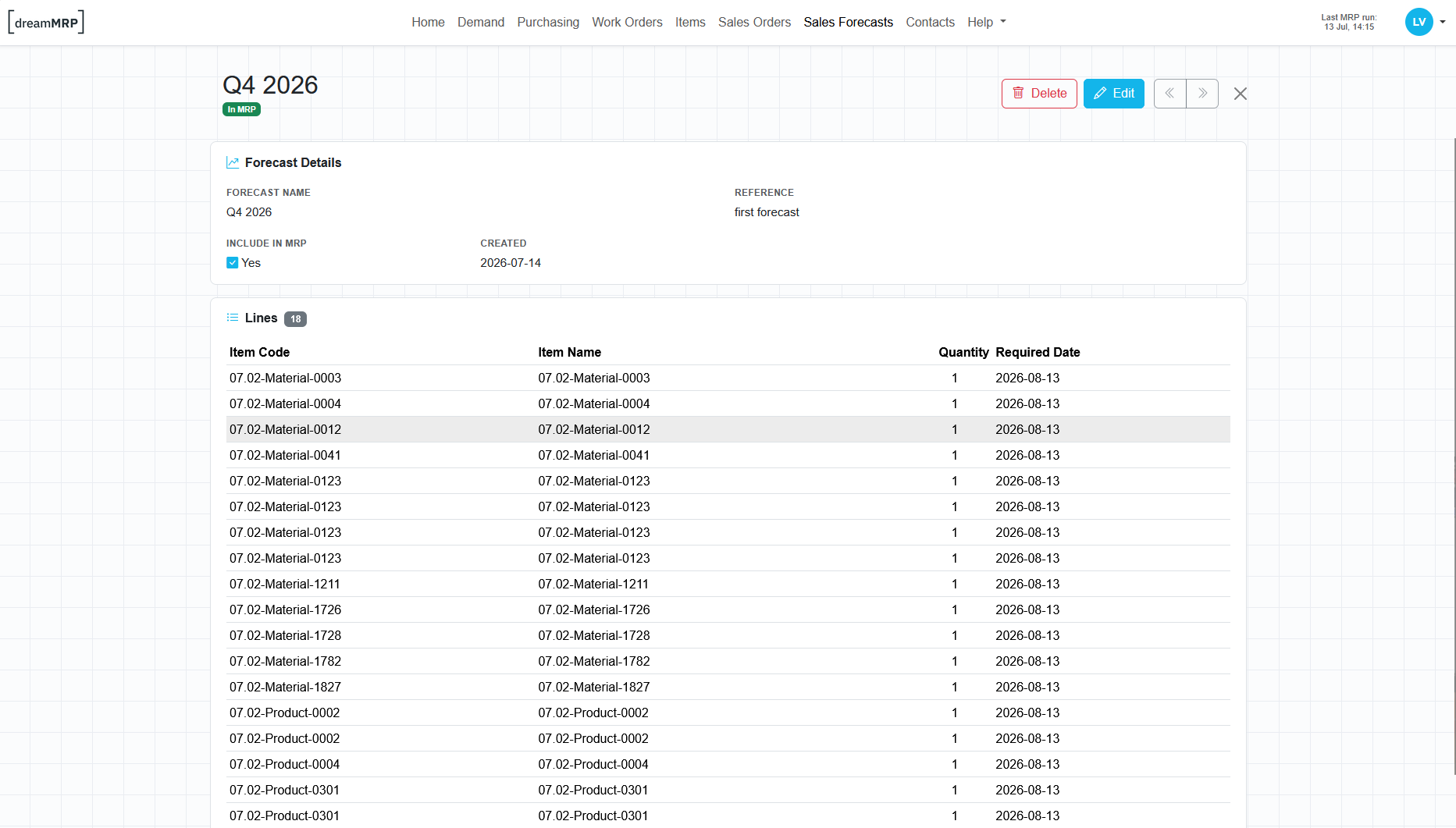
A forecast is a named set of lines — item code, quantity and required date — with its own reference and an Include in MRP switch. Build one per quarter, per customer or per campaign.

Switch a forecast into MRP and its lines are treated as demand alongside real sales orders, so long-lead components get ordered in time. Switch it off and the plan reverts to confirmed demand only, with no data lost either way.

Benefit — run the “what if we win it” scenario against your actual stock position in seconds, instead of guessing at long-lead purchases.

scenarios
Multiple forecasts

Keep several forecasts side by side and choose which ones count. Each is labelled clearly as in or out of the current plan.

toggle
Reversible by design

Include in MRP is a single checkbox. Turning a forecast off removes its influence from the next run without deleting the work you put into it.

dates
Dated requirements

Every forecast line carries a required date, so lead times are respected rather than everything being treated as needed now.

visibility
Separated in Demand

The Demand screen keeps forecast quantities in their own column, so you always know how much of a shortage is real and how much is speculative.

Dream MRP Sales Forecasts screen
Sales Forecasts / forecast detail and MRP inclusion
Menu 08 / Contacts

Suppliers and
customers, in sync.

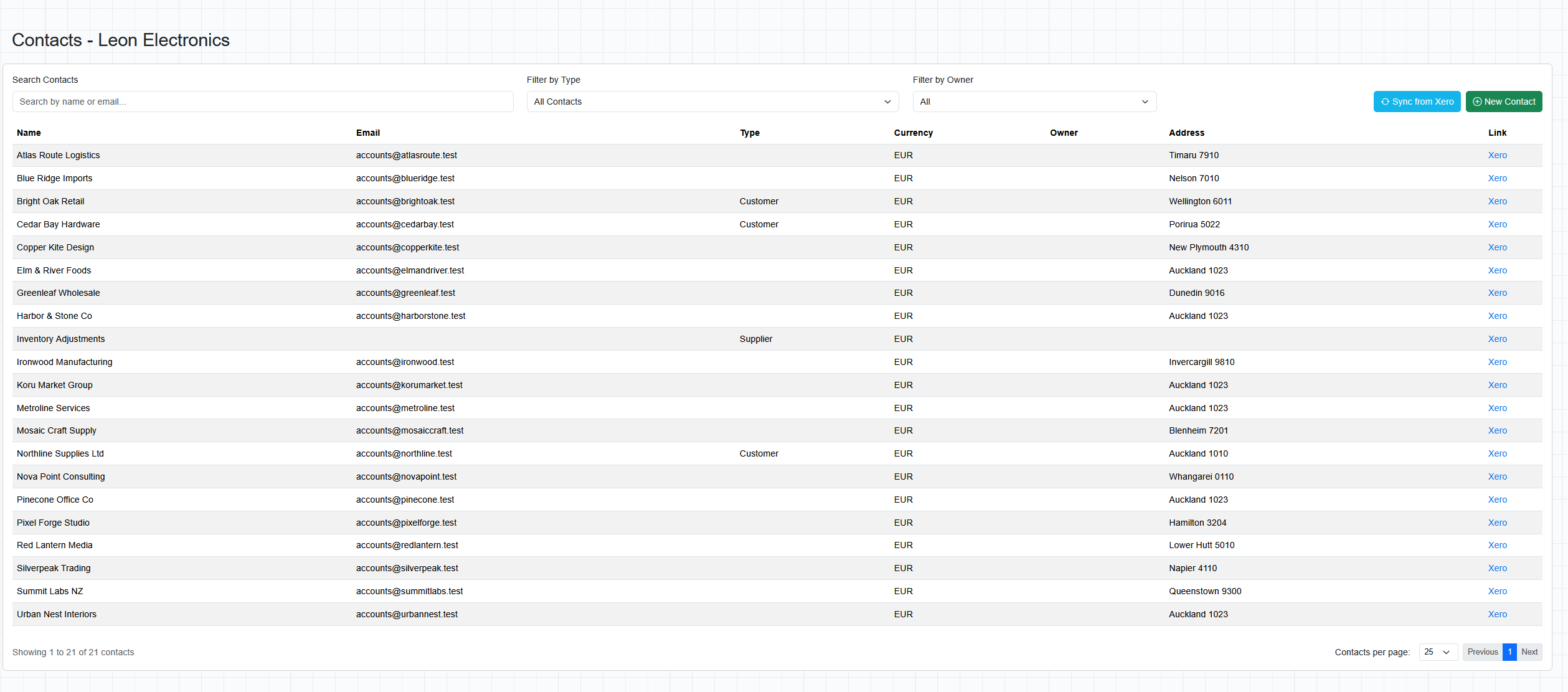
Contacts are synced from your accounting system with name, email, type, currency, address and owner, and each row links straight back to the source record in Xero. New contacts can be created here and pushed the other way.

Suppliers are what planned purchase orders are grouped and addressed by; customers are what sales orders and quotes are attached to. Assign an owner to route documents to the right person, and search or filter by type and owner to find anyone quickly.

Benefit — one contact list behind both purchasing and sales, so a generated PO already carries the right email address, currency and delivery details.

single source
No duplicate database

Contacts stay owned by your accounting system. Sync brings them in, and the link column takes you back to the original record in one click.

currency
Currency and address carried

Each contact’s currency and address flow onto the documents raised against them, so multi-currency purchasing needs no manual correction.

owner
Ownership

Assigning an owner puts a named contact and telephone number on the purchase order and lets each buyer filter the queue down to their own accounts.

type
Customer and supplier split

Filtering by type keeps the supplier list clean when raising purchase orders, even in an accounting file where everyone is mixed together.

Dream MRP Contacts screen
Contacts / synced customers and suppliers
Menu 09 / Help

Documentation
where you work.

The Help menu links the in-app screens to the written material behind them — connection and setup guides for Xero, QuickBooks, Shopify and the API, plus articles on how the MRP calculation works, how work orders close, and how the overnight run behaves.

It also covers account settings: the organisation you are connected to, your plan, the users on it, and read-only mode — which new accounts start in, so you can run the full calculation and inspect the plan before anything is allowed to post back.

Benefit — you can evaluate the system on your own live data with no risk of it writing to your accounts, and get answers without leaving the screen you are stuck on.

Setup guides →
read-only
Safe by default

Accounts begin in read-only mode. Nothing is written back to Xero or QuickBooks until you deliberately turn posting on.

guides
Connection guides

Step-by-step setup for Xero, QuickBooks, Shopify and the API, including what permissions are requested and why.

orgs
Organisations and users

Switch between connected organisations from the header. Each keeps its own isolated dataset, plan and user list.

night run
Automation explained

Articles cover the scheduled overnight run, automatic work order creation and purchase order approval, so you know exactly what the system does unattended.

Get started

Ready to see it
in action?

Connect your organisation, run the calculation, review the plan. Read-only until you say otherwise.

Start free trial See pricing →