Before connecting, make sure you have:
- A Sage Accounting Standard or Plus subscription in the UK, Ireland or Canada — Standard is enough for purchase orders; planning from stock needs Plus (see below)
- A Sage user with Full Access
- Products in Sage with item codes — products without one are skipped and listed for you to fix
- Nothing else — signing up with Sage creates your Dream MRP account as part of the same step
Start here. Choosing Continue with Sage creates your Dream MRP account and your first organisation together — there is nothing to set up beforehand.
Sign up with Sage →Leave the Read-only connection box ticked. Dream MRP then asks Sage for view-only access, so Sage itself refuses any write: no stock movements, no new suppliers. You can do everything else in Dream MRP.
Sign in to Sage and allow access. If your login has several businesses, pick the one to connect. A business on Standard says so on its tile; any that cannot connect, such as one on Start, are shown locked with the reason.
Dream MRP reads your business details, tax rates and accounts, then your products (with stock, on Plus), contacts, accepted quotes and estimates, and purchase invoices. You can watch each stage on the dashboard.
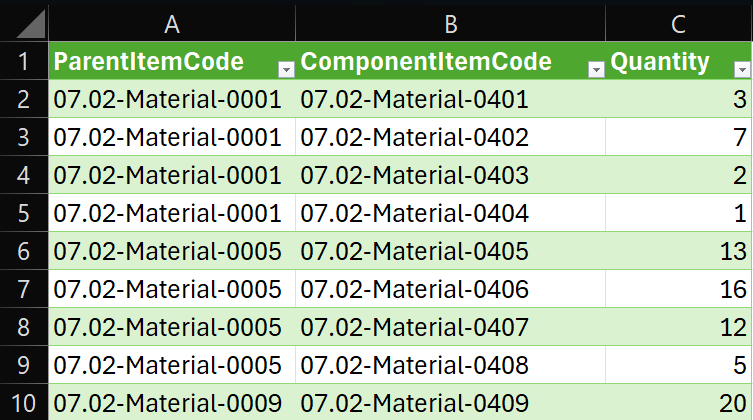
If you manufacture, this is the step that matters. A BOM links a finished item to its components and quantities, and Dream MRP explodes it through every level when it calculates. Build them in the app or import a spreadsheet by CSV, using the same item codes as Sage. Or set one up by hand: in the Items menu, change an item from purchased to make to stock or make to order, then add its components one by one on screen. That is ideal for trying a single product during your trial. Resellers who only buy and sell finished goods can skip this step.

Press Run Dream MRP. On Plus, Dream MRP nets your accepted quotes and estimates against stock in Sage and what is already on order, then plans the purchase orders and work orders to cover the difference. With a Read-Only connection you see the whole plan and Sage is left exactly as it was. On Standard there is no stock in Sage to net against, so the run plans your work orders but does not propose purchase orders: you raise those yourself in the next step.
Create a purchase order from your Sage products and services, or on Plus check the planned ones, and approve it: Dream MRP emails the supplier a PDF. Purchase orders live in Dream MRP, because Sage Accounting has none, so this works the same over a read-only connection. Check the planned work orders and open the ones you want to start.
When the supplier invoices you, enter the purchase invoice in Sage as usual, with the Dream MRP purchase order number in its Reference field (not Supplier Reference). The next sync matches it and closes the order, or the delivered part of it.
Where the plan is not quite right, set up the data it was missing, such as a product’s reorder level or usual supplier in Sage, then run MRP again. A couple of passes is usually all it takes. The connection is already live; it is just one way. To make it two-way, choose End read-only connection on the Organisations page and grant full access: you can then send new suppliers to Sage, and on Plus closing a work order posts stock movements to Sage. Or stay read-only for good: that can be a valid long-term process.
Which Sage plan you are on
Standard connects and gives you purchase orders without any inventory control in Sage. Your products and services come in as untracked items, so you raise purchase orders yourself, email them, and your Sage purchase invoices close them. Contacts, accepted quotes and purchase invoices sync just as on Plus. Work orders are still planned by MRP and closed as usual, just without stock movements; only the purchase orders are raised by hand.
Plus is the only Sage Accounting plan with stock items, and stock is what MRP plans from: with it, Dream MRP proposes the purchase and work orders for you. Upgrade to Plus in Sage and the next sync starts bringing in your stock, with no need to reconnect.
Start cannot be connected: it has no products, services, quotes or purchase invoices, so there would be nothing to raise orders from.
Sage Accounting businesses in the UK, Ireland and Canada can connect. Each Sage business becomes its own Dream MRP organisation, and one Sage login can connect several.
Sage asks Dream MRP to renew its access at least once a month. Every sync renews it and a daily check covers quiet periods, so there is nothing for you to do. If access ever lapses, the dashboard shows a Reconnect to Sage link.
Next steps
- On Plus, set the reorder level, reorder quantity and usual supplier on your Sage stock items — they become the minimum stock level, minimum reorder quantity and default supplier in Dream MRP
- Make quoting your purchase order number in the Reference field a habit when entering supplier invoices
- Add sales forecasts if you buy ahead of confirmed demand
- Turn on auto-approve purchasing and auto-start work orders for the suppliers and products you trust
If you run into any issues: check the general setup guide, or contact us at support@dreammrp.com.